Turn a scanned page or a photo into text, Word or PDF
Watch it done
No sound. The captions say what is happening.
Before you start
- A scan or a photo of a printed page: PDF, JPG, PNG, TIFF.
- A straight, well-lit photo works best. Hold the phone flat over the page and keep shadows off it.
Steps
1.Open the OCR page.
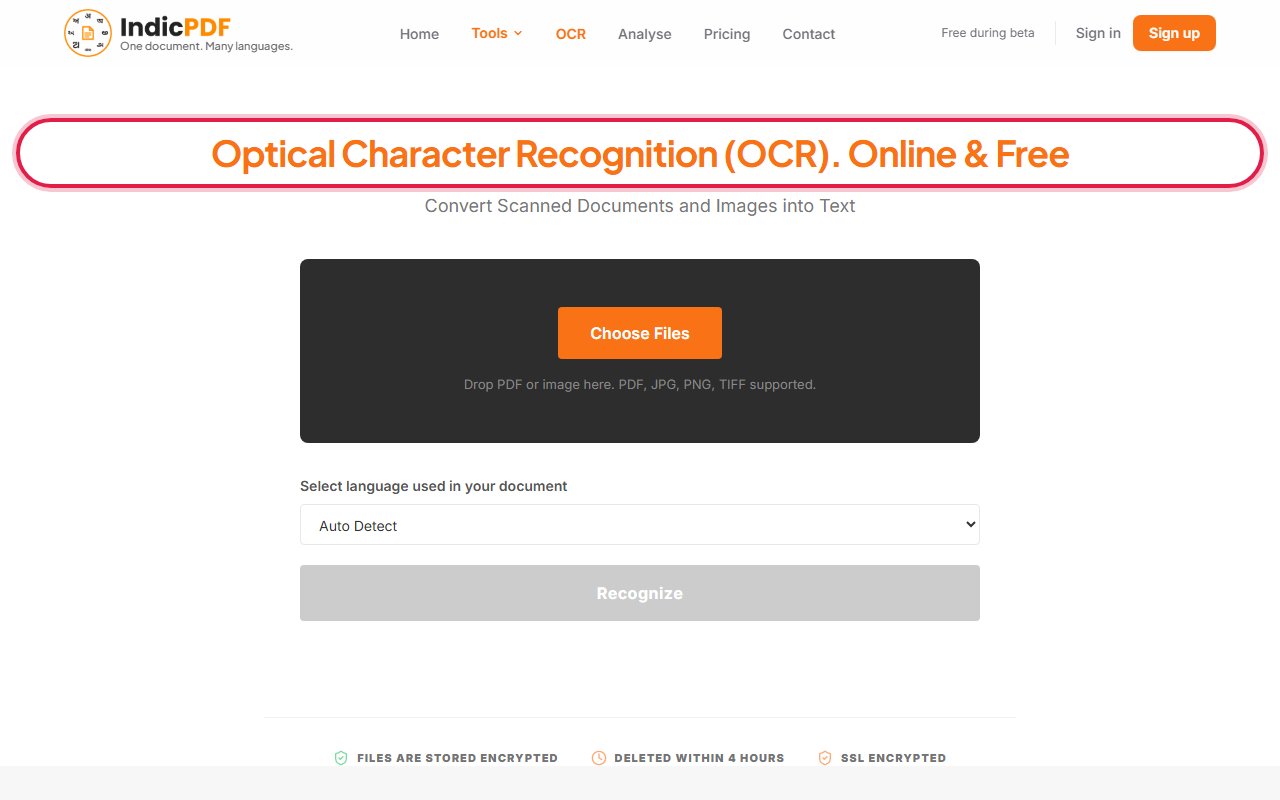
2.Click Choose Files and pick your scan or photo.
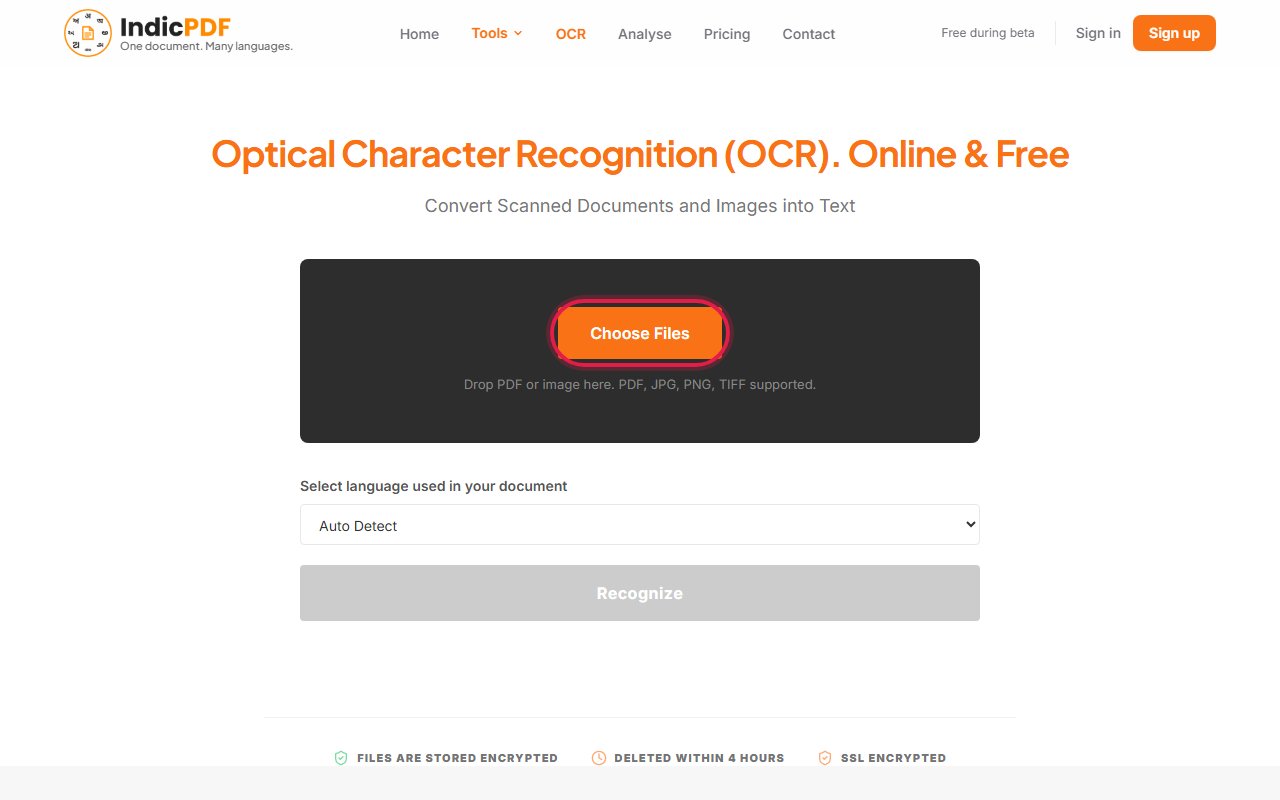
3.Under Select language used in your document, choose the language of the page, for example Telugu.
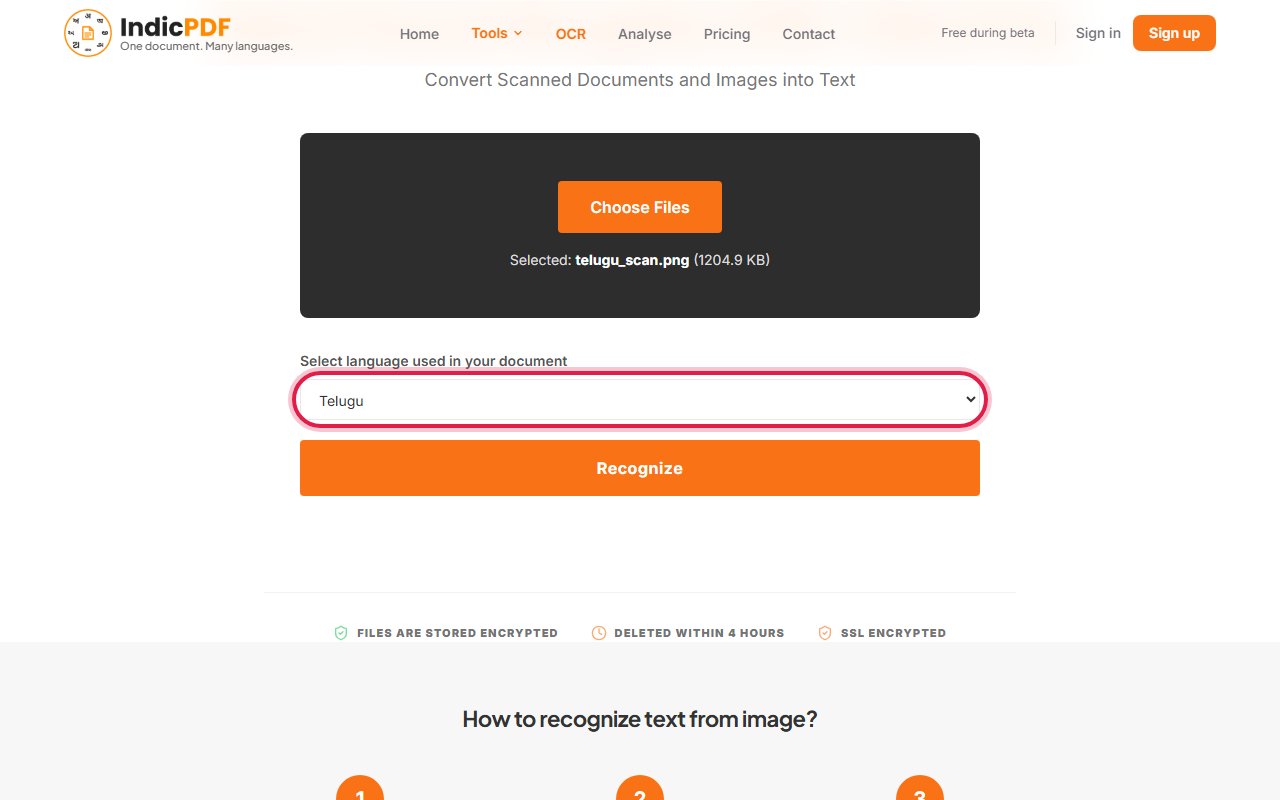
4.Click Recognize.
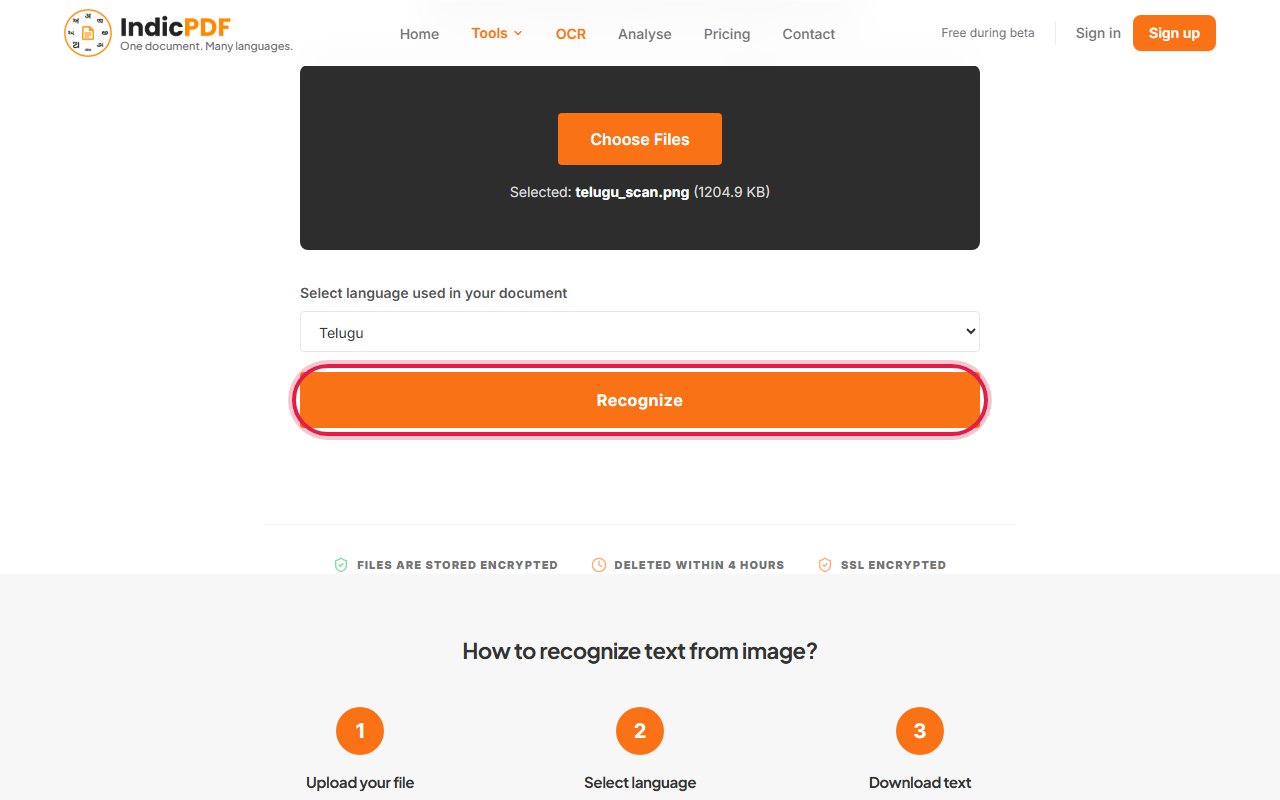
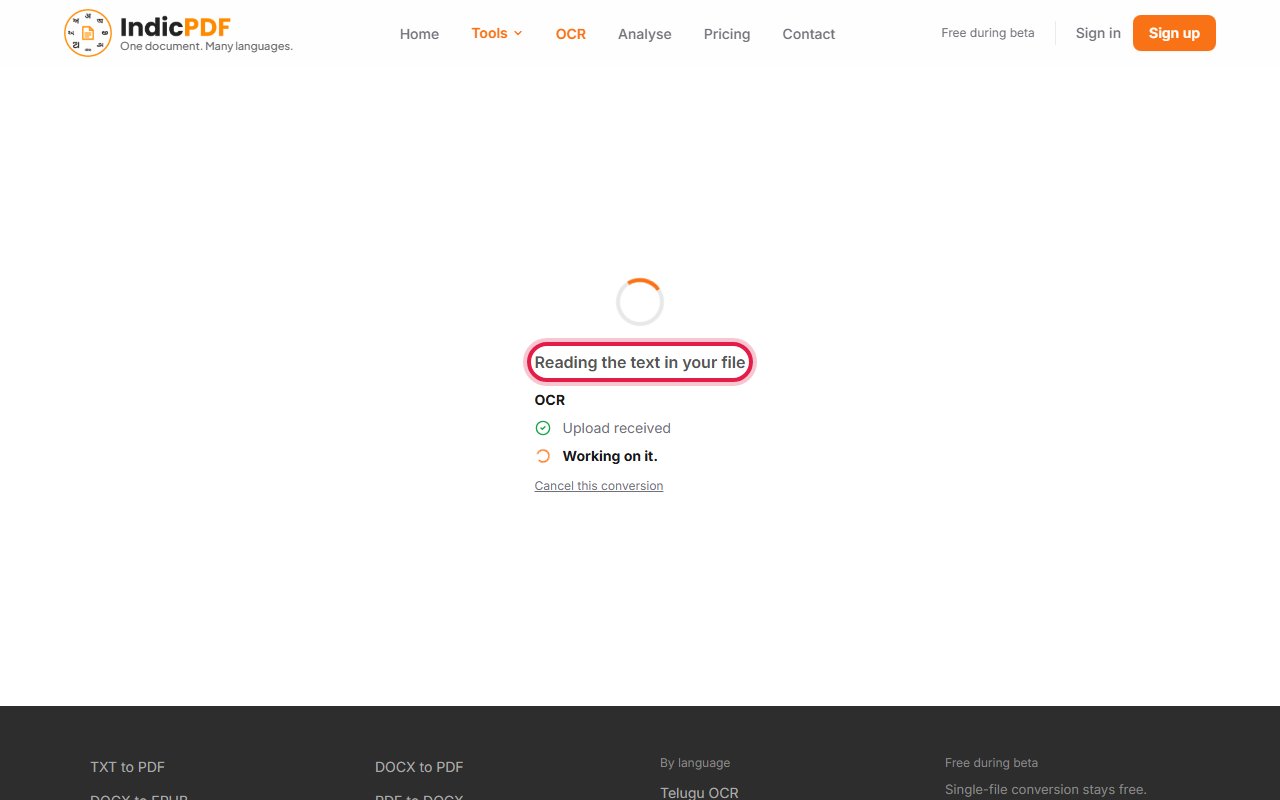
5.Wait while the page says Reading the text in your file. A scanned page can take a minute or more.
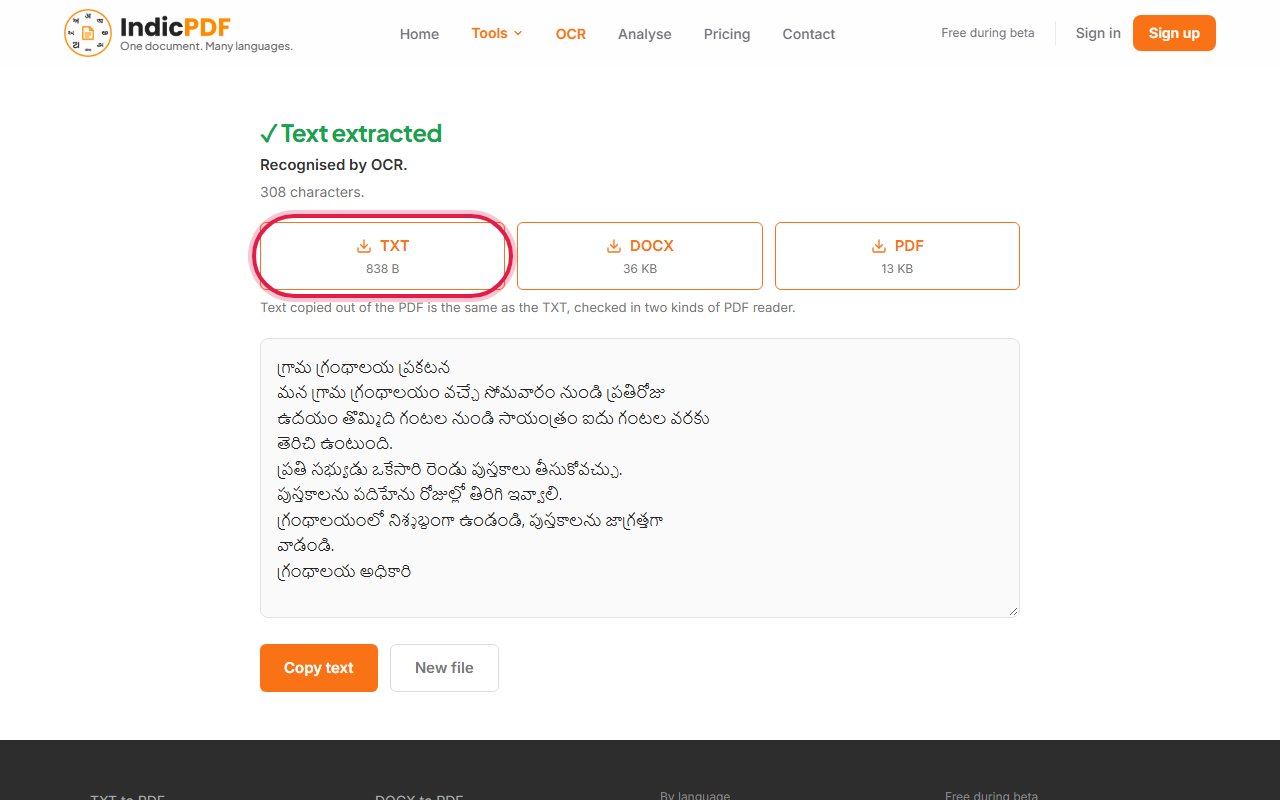
6.When you see Text extracted, download the text as TXT, DOCX or PDF, or click Copy text.


What to expect
Languages (13): Hindi, Marathi, Telugu, Tamil, Bengali, Assamese, Gujarati, Kannada, Malayalam, Odia, Punjabi, Sanskrit, English
What this tool does not do yet
- Handwriting is not supported.
- A page is read in one Indian language plus English. Words in a second Indian language on the same page are not read.
- Tables and columns come out as lines of text. Check the reading order.
- Old or worn print is read less well than clean modern print. Check names and numbers.
Files up to 25 MB. Your file and the result are deleted within 4 hours. No sign-up.
Common problems
The text is full of mistakes.
Check that you chose the right language. Then try a sharper, straighter picture. Old or worn print is harder to read.
My PDF was not read by OCR.
If the PDF already holds text, the tool takes that text and says so. To read the page images instead, tick the Force OCR box before you click Recognize.
My file is waiting in a queue.
Files are read one after another, and a long scan takes time. The page shows how many are ahead of you.
Only the first pages came back.
A long scan can run out of time. The result says which pages were read. Split the PDF and send the rest separately.
Can it read handwriting?
No. It reads printed text only.