Find out what kind of file you have, and which tool it needs
Watch it done
No sound. The captions say what is happening.
Before you start
- One file or many: PDF, Word (.docx), or pictures of pages. You can upload a whole folder’s worth at once.
- Nothing is converted here. Each file is looked at and you are told what it is.
Steps
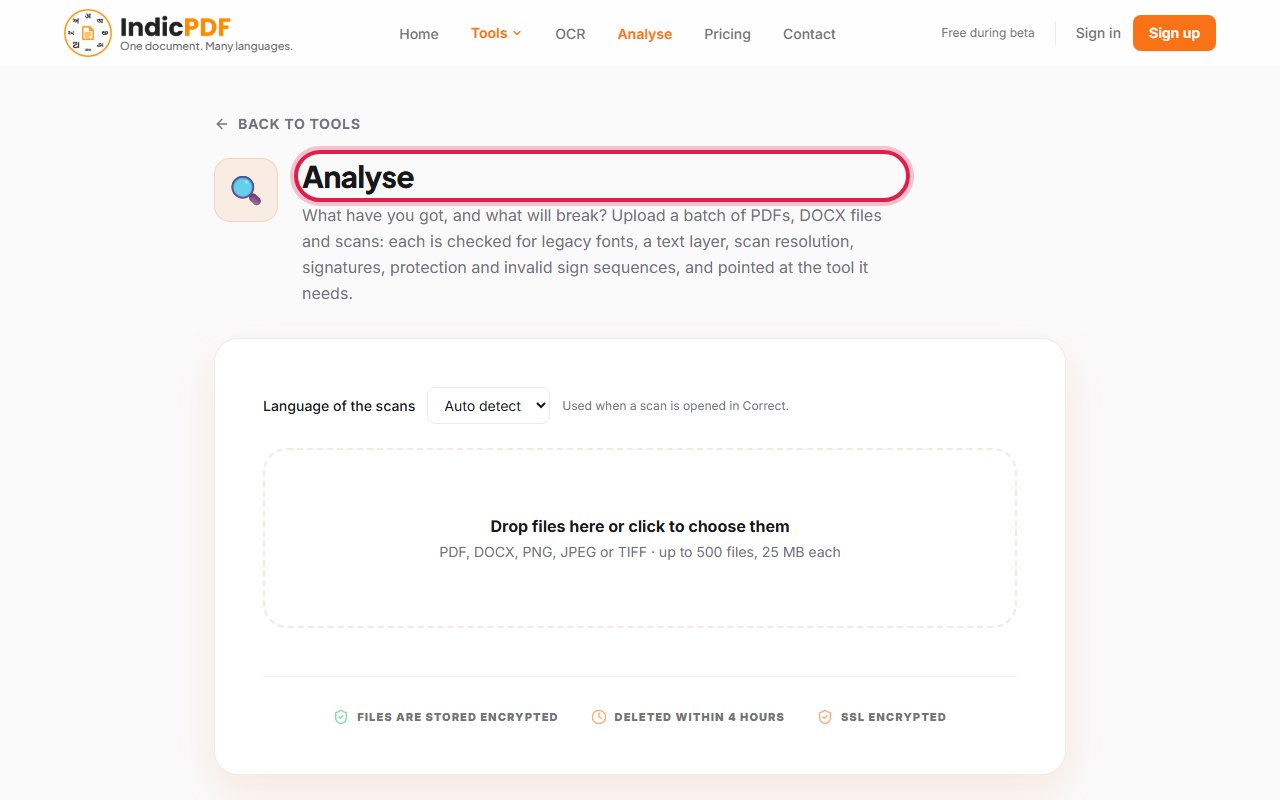
1.Open the Analyse page.
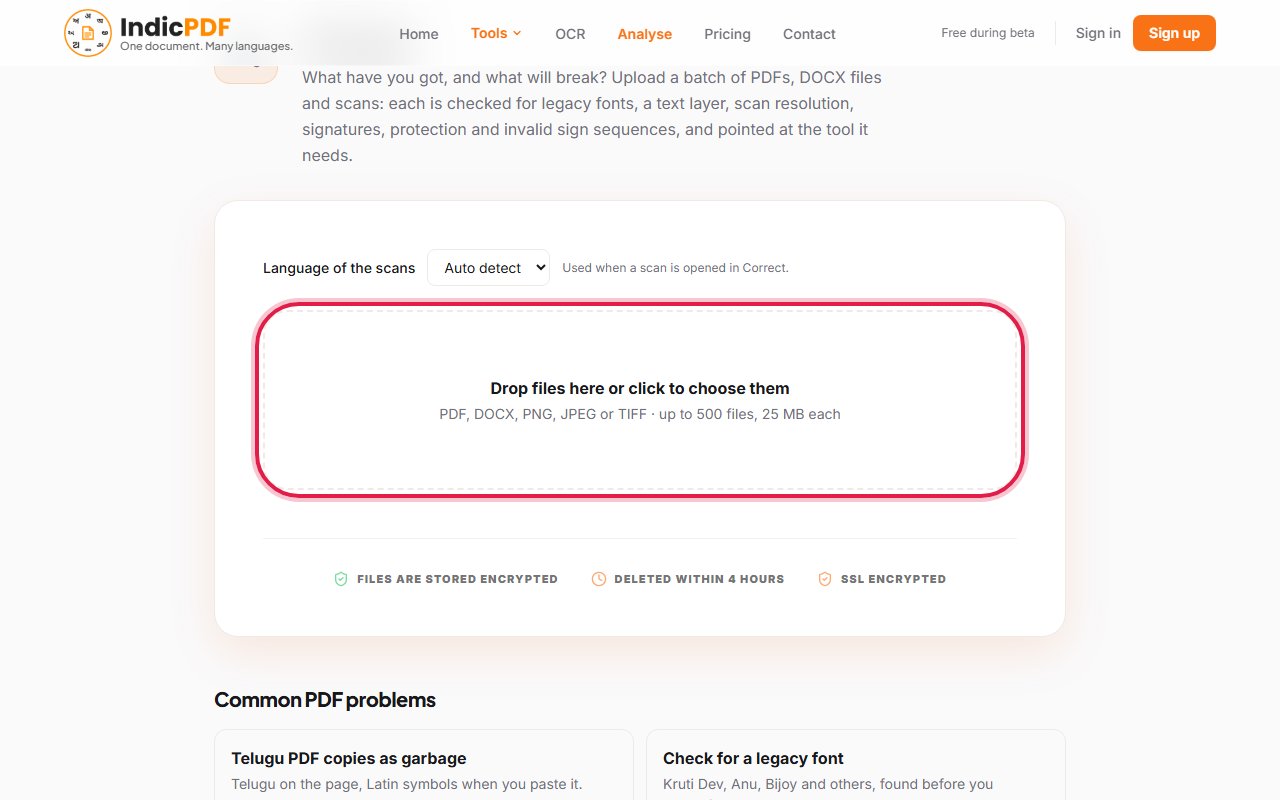
2.Click Drop files here or click to choose them and pick your files.
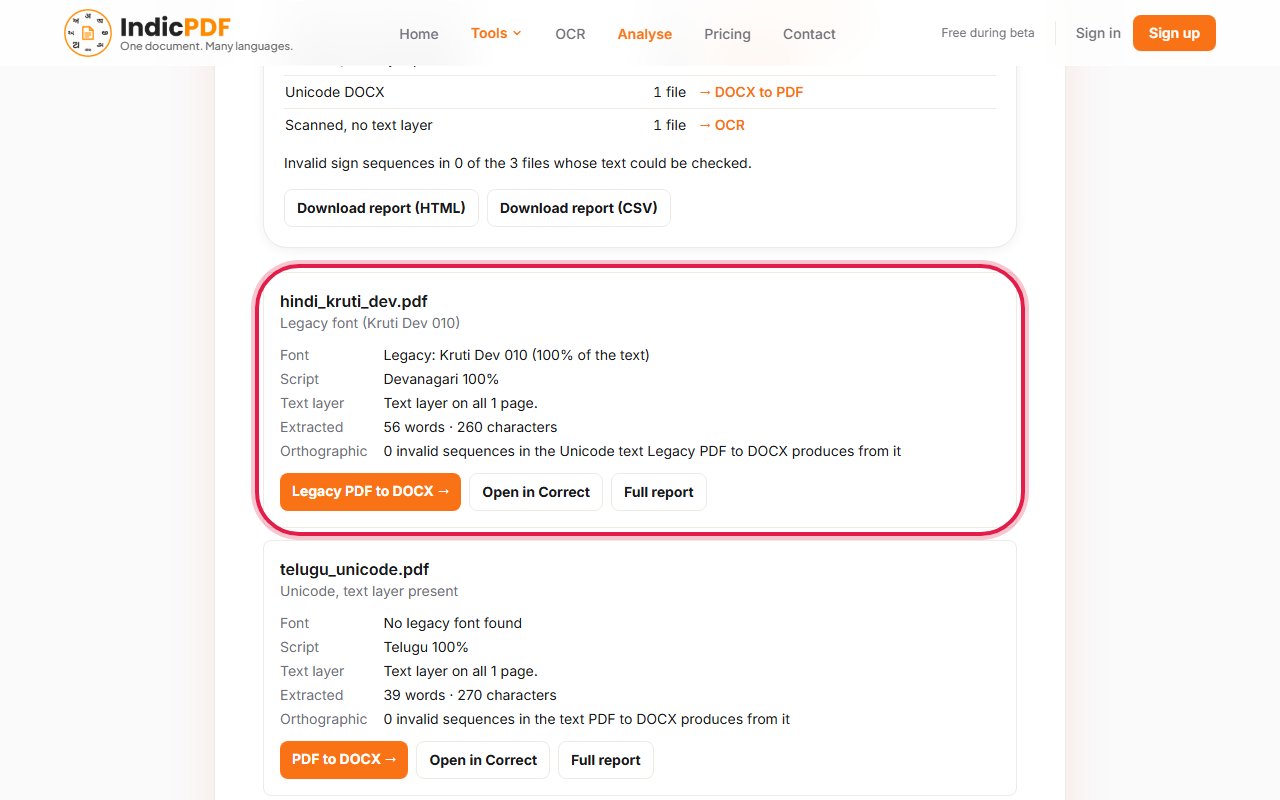
3.Wait while each file gets its own card. The card says what was found: Font, Text layer and, for a scan, its resolution.
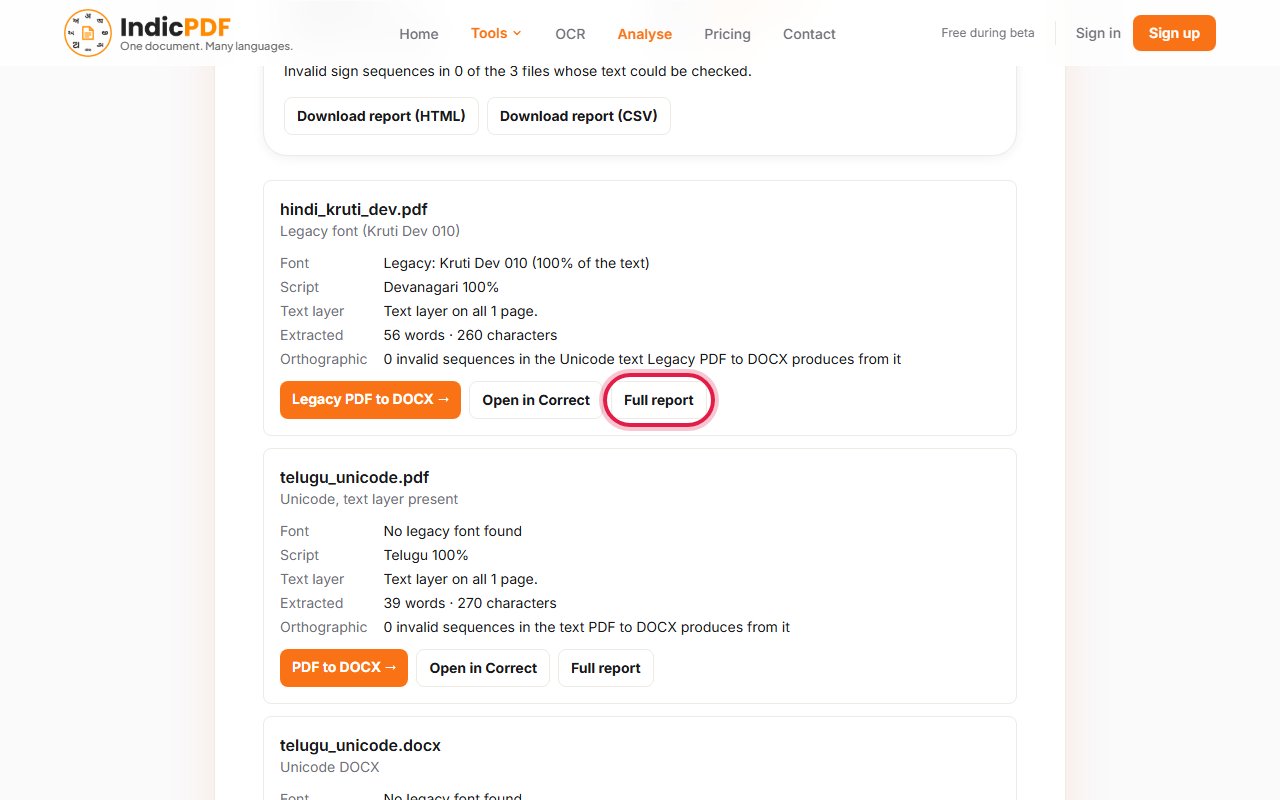
4.On a card, click the coloured button to open the tool that file needs. For a PDF, Full report shows every check.
5.To keep the results, click Download report (HTML) or Download report (CSV).
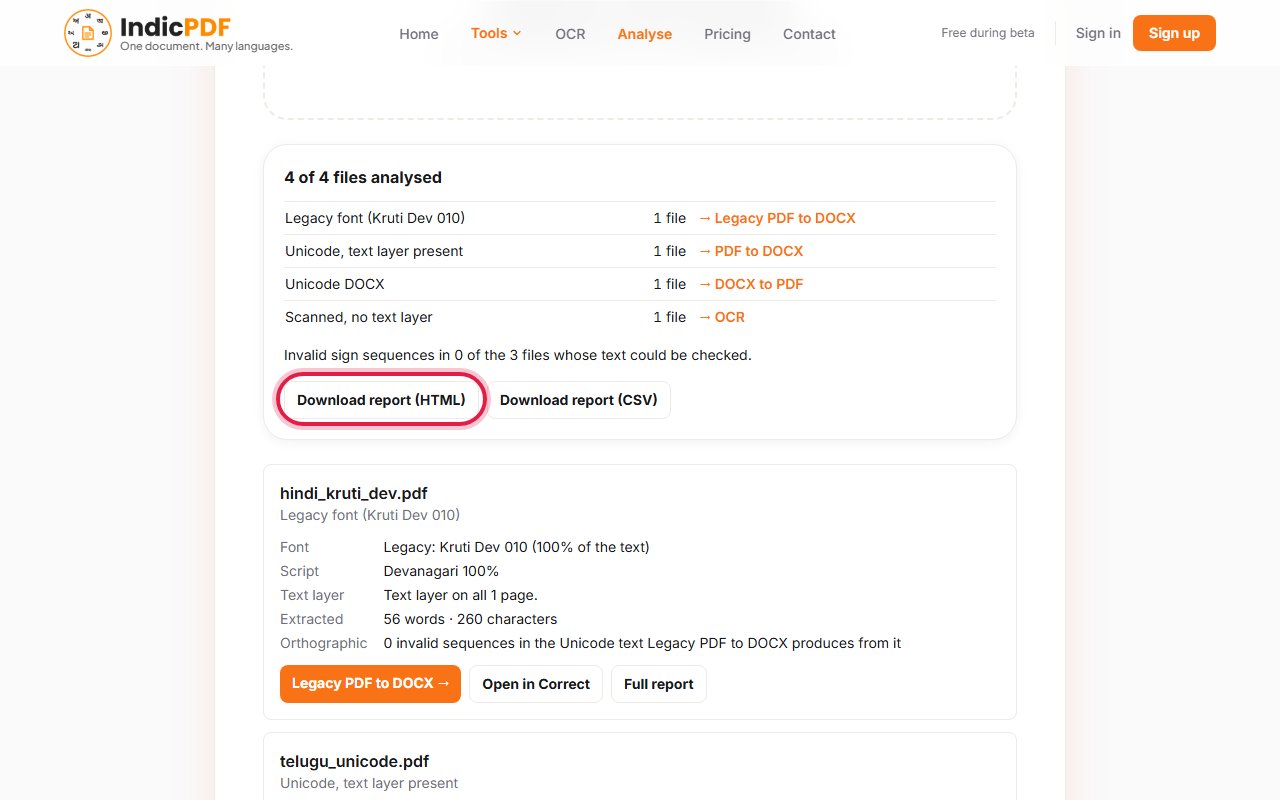


What to expect
What this tool does not do yet
- Nothing is converted or corrected here. Each card points to the tool that does that.
- No accuracy figure is given for a file: that needs a correct copy of the text to compare with.
- A digital signature is found and reported, but it is not checked for validity.
Files up to 25 MB. Your file and the result are deleted within 4 hours. No sign-up.
Common problems
A card says the file has a legacy font.
The text is stored in an old font’s codes. The button on the card opens the Legacy tool, which reads that font.
A card says the text layer does not read.
The PDF’s own text is damaged or was made by another program’s OCR. PDF to DOCX reads those pages again from their pictures.
The page says the batch is no longer on the server.
The server restarted while your files were running. Upload the files again.
A file was refused at upload.
Only PDF, Word and picture files up to 25 MB are taken. The card gives the reason for each refused file.