Put Telugu text from a Word file into PageMaker, in the Anu font
Watch it done
No sound. The captions say what is happening.
Before you start
- A Word file (.docx) with ordinary Unicode Telugu, the kind you can read in Word without a special font.
- PageMaker with the Priyaanka Uni font installed on the computer where you will place the text.
Steps
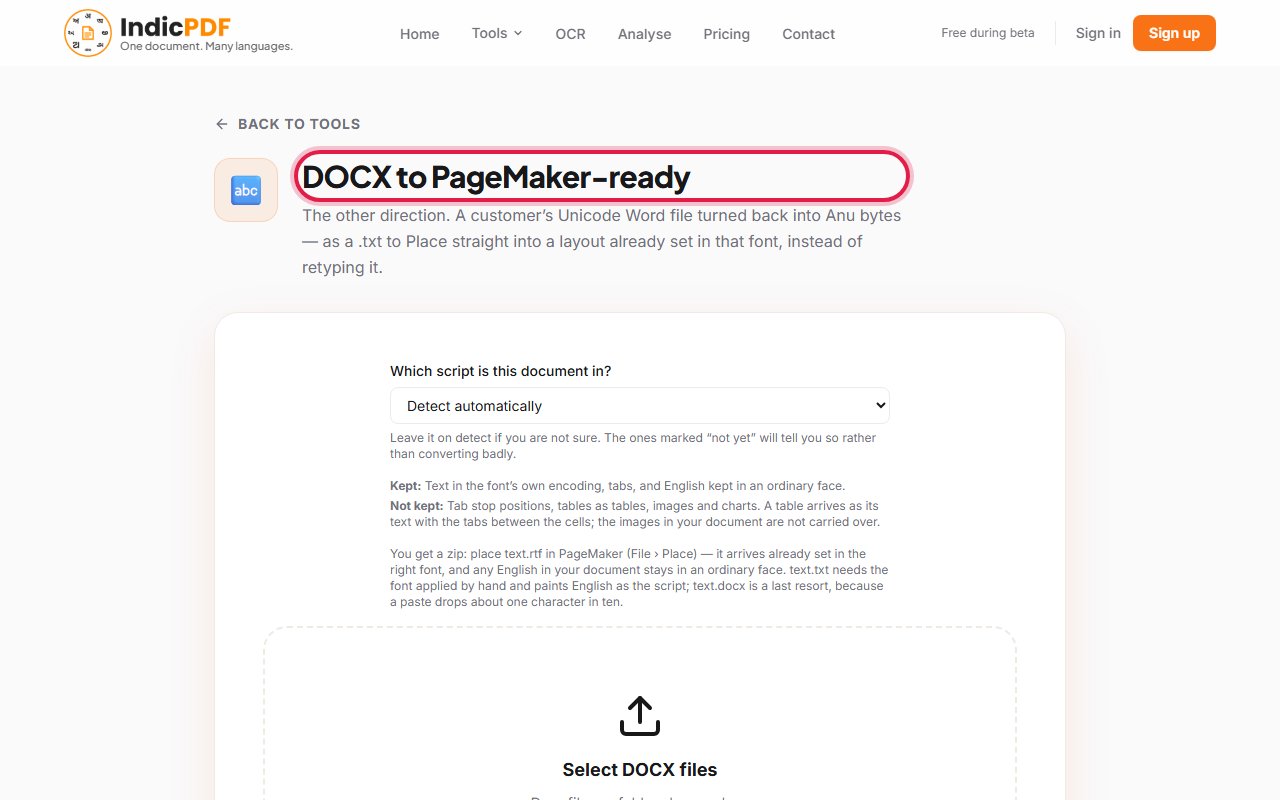
1.Open the DOCX to PageMaker-ready page.
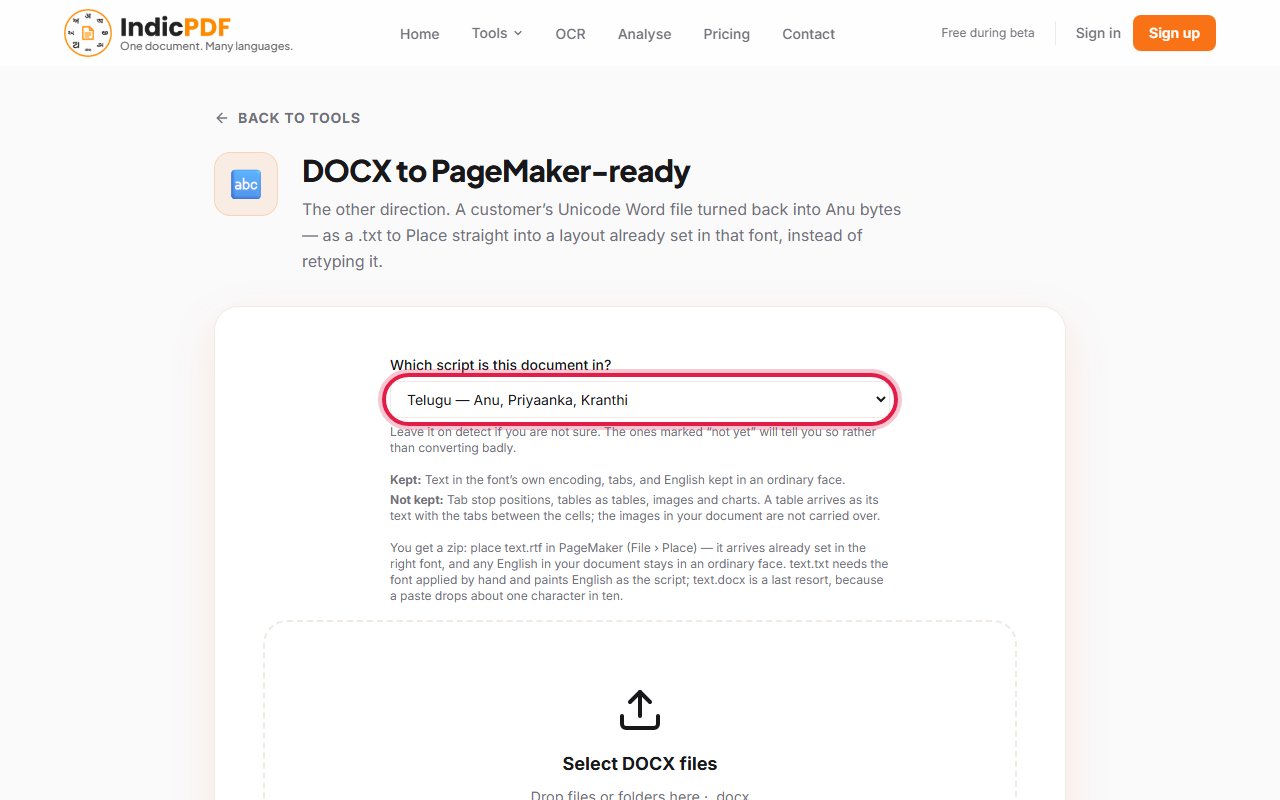
2.Under Which script is this document in?, choose Telugu — Anu, Priyaanka, Kranthi.
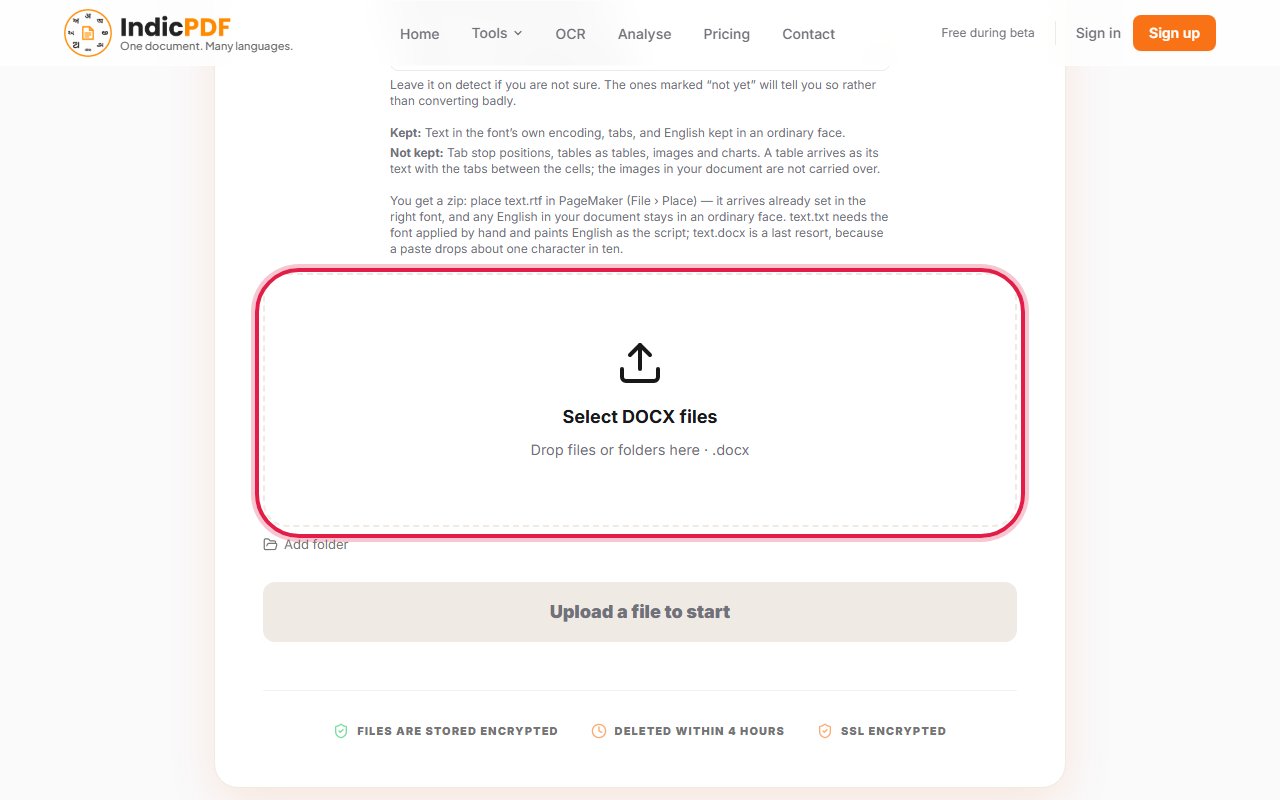
3.Click the upload box (Drop files or folders here) and choose your Word file.
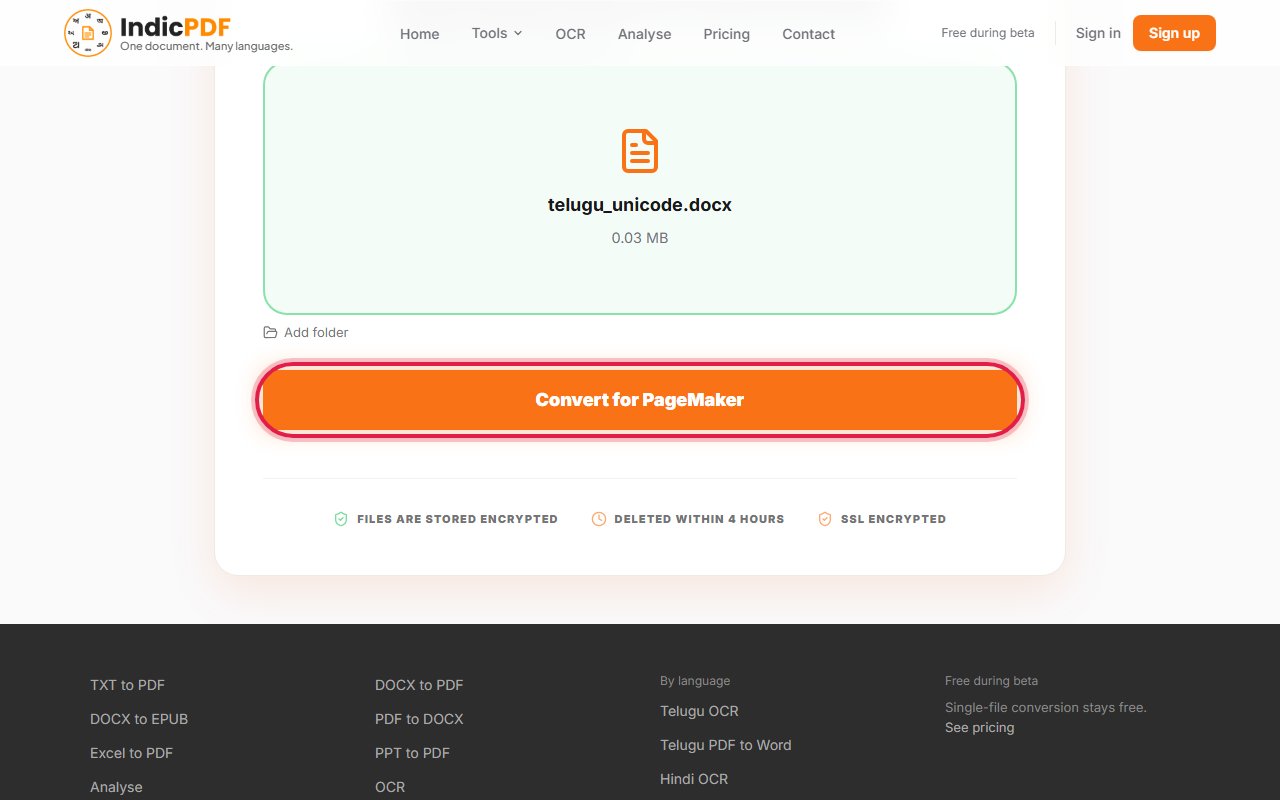
4.Click Convert for PageMaker.
5.Click Download Result. You get a zip file. Open it and find text.rtf.
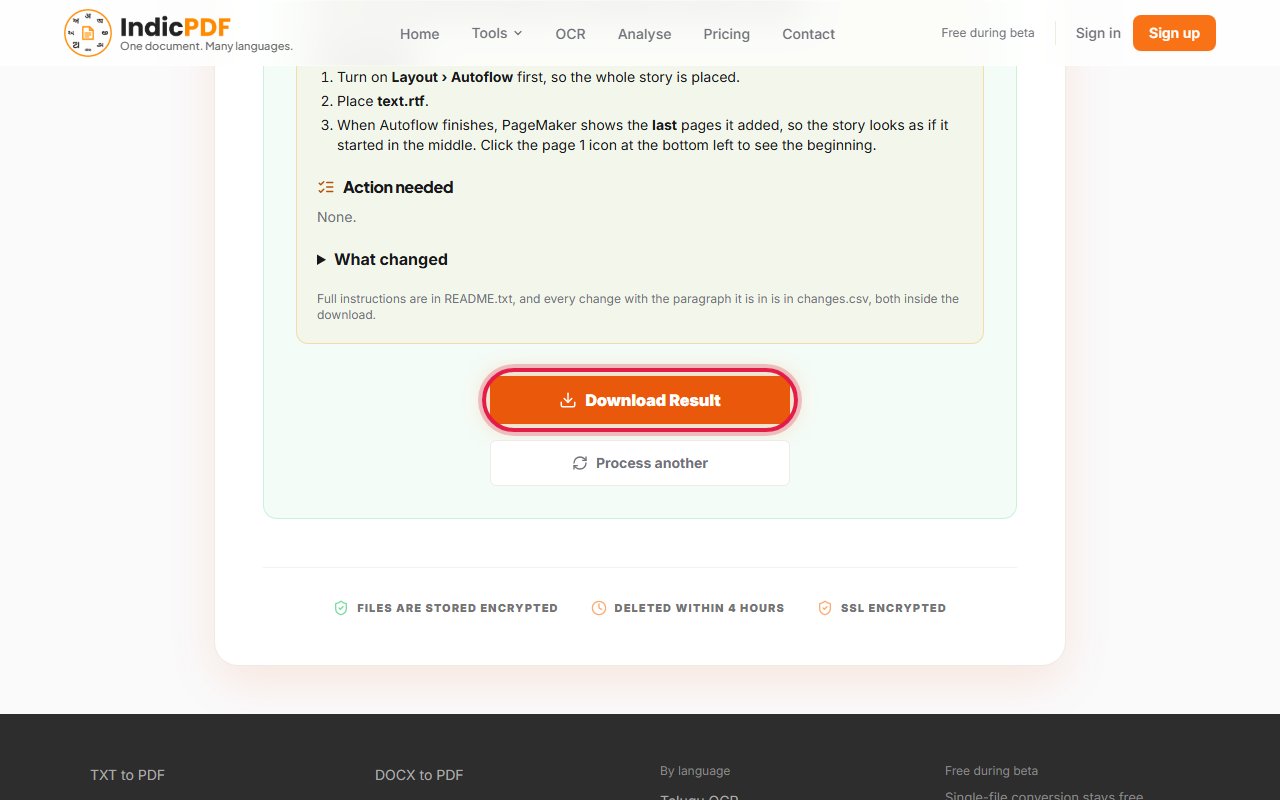
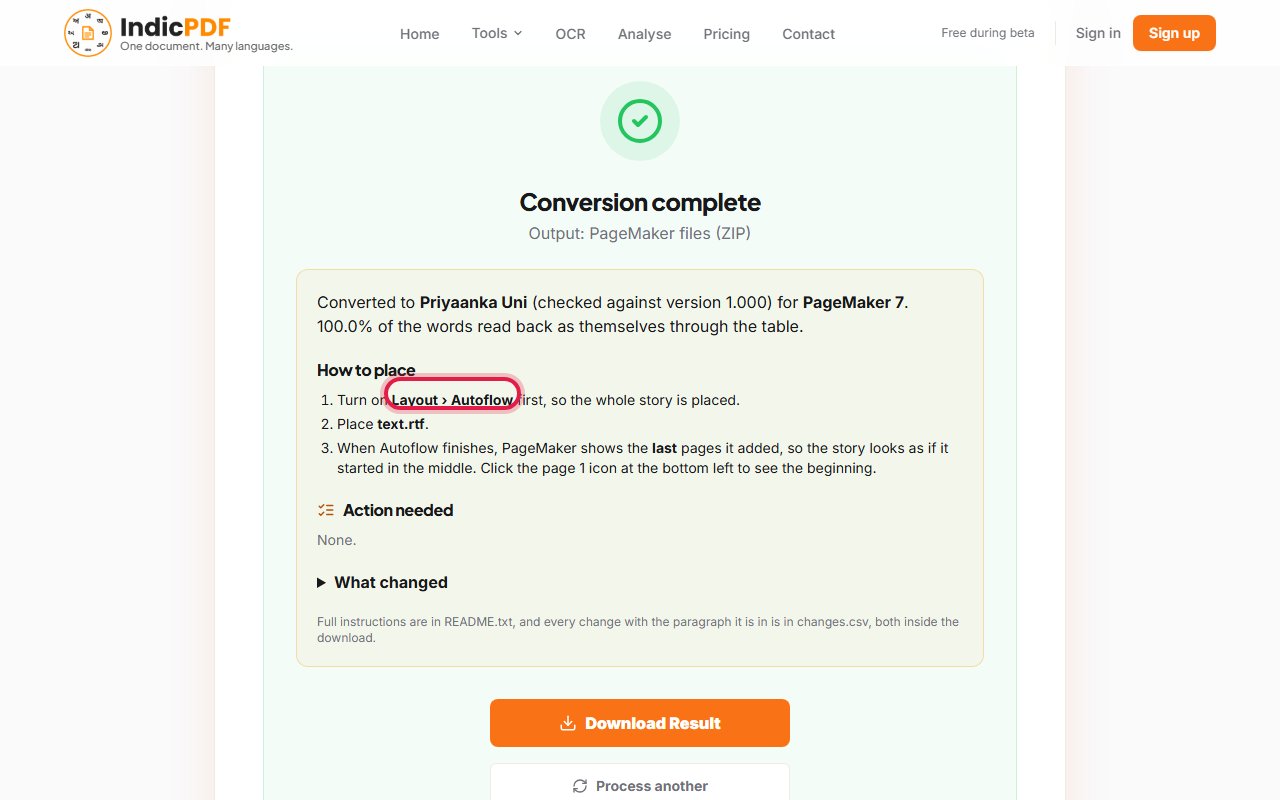
6.In PageMaker, turn on Layout › Autoflow, then use File › Place and choose text.rtf. Untick “Convert quotes” in the Place dialog first: it damages the visarga and the hyphen in this font.


What you get
In your Word file
గ్రామ ప్రకటన
What text.rtf holds (drawn as Telugu by the font)
ç>±eT ç|Ÿ¿£³q
What to expect
Placed in PageMaker and checked
- Priyaanka Uni (Anu)
Languages (11): Telugu, Hindi, Marathi, Sanskrit, Bengali, Tamil, Kannada, Malayalam, Gujarati, Odia, Punjabi
What this tool does not do yet
- Tables arrive as text with tabs between the cells, not as tables.
- Pictures and charts in the Word file are not carried over.
- A letter the font has no shape for is marked in red in the result, so you can fix it by hand.
Files up to 25 MB. Your file and the result are deleted within 4 hours. No sign-up.
Common problems
PageMaker asks about a missing font.
Priyaanka Uni is not installed on that computer. Install it, then place text.rtf again.
Some letters are red and in square brackets.
The font has no shape for that letter. The result page lists each one and the paragraph it is in, so you can fix it by hand.
The text stops halfway down the page.
PageMaker placed only what fits on one page. Turn on Layout › Autoflow before you place, and go to page 1 when it finishes.
A visarga or a hyphen is missing.
“Convert quotes” was ticked when you placed the file. Untick it and place text.rtf again. PageMaker remembers the choice.
Can I copy and paste instead of using Place?
No. Copy and paste loses about one letter in ten. Always use File › Place with text.rtf.